
You bought the domain. You signed up for Wix. And now you’re staring at a blank screen wondering, Where do I even start?
You’re not alone. Most small business owners know what they want their site to feel like — they just don’t know how to get it out of their head and onto the screen.
Here’s the good news: AI has completely changed this. Wix now has a built-in AI assistant called Aria that builds your entire website from a conversation. And when you combine that with Claude or ChatGPT for your copy, you can go from blank domain to live website in a single afternoon — no designer needed.
This is exactly what I walk my clients through at Izende Studio. Here’s the full framework.
Step 1: Use AI to Define Your Brand Voice Before You Touch Wix
Before you open Wix, open Claude or ChatGPT. You’re going to use AI to build your copy foundation — the actual words that go on your site. Most people skip this and end up staring at blank text boxes inside the editor. Do this first.
Prompt to use:
I’m building a website for my [type of business]. My target customer is [describe them]. I want the tone to feel [professional / warm / bold]. Write me: (1) a homepage headline, (2) a one-sentence tagline, (3) a short About Me paragraph, and (4) a call-to-action button label.
Copy the output and keep it somewhere handy — a Google Doc, a note on your phone. This is your copy bank. You’ll paste from it throughout the process.
Step 2: Start a New Wix Site and Chat With the AI
When you create a new site in Wix, you’ll see a screen asking how you want to get started. Click Chat with AI — this launches Wix’s AI onboarding, which learns about your business before it builds anything.
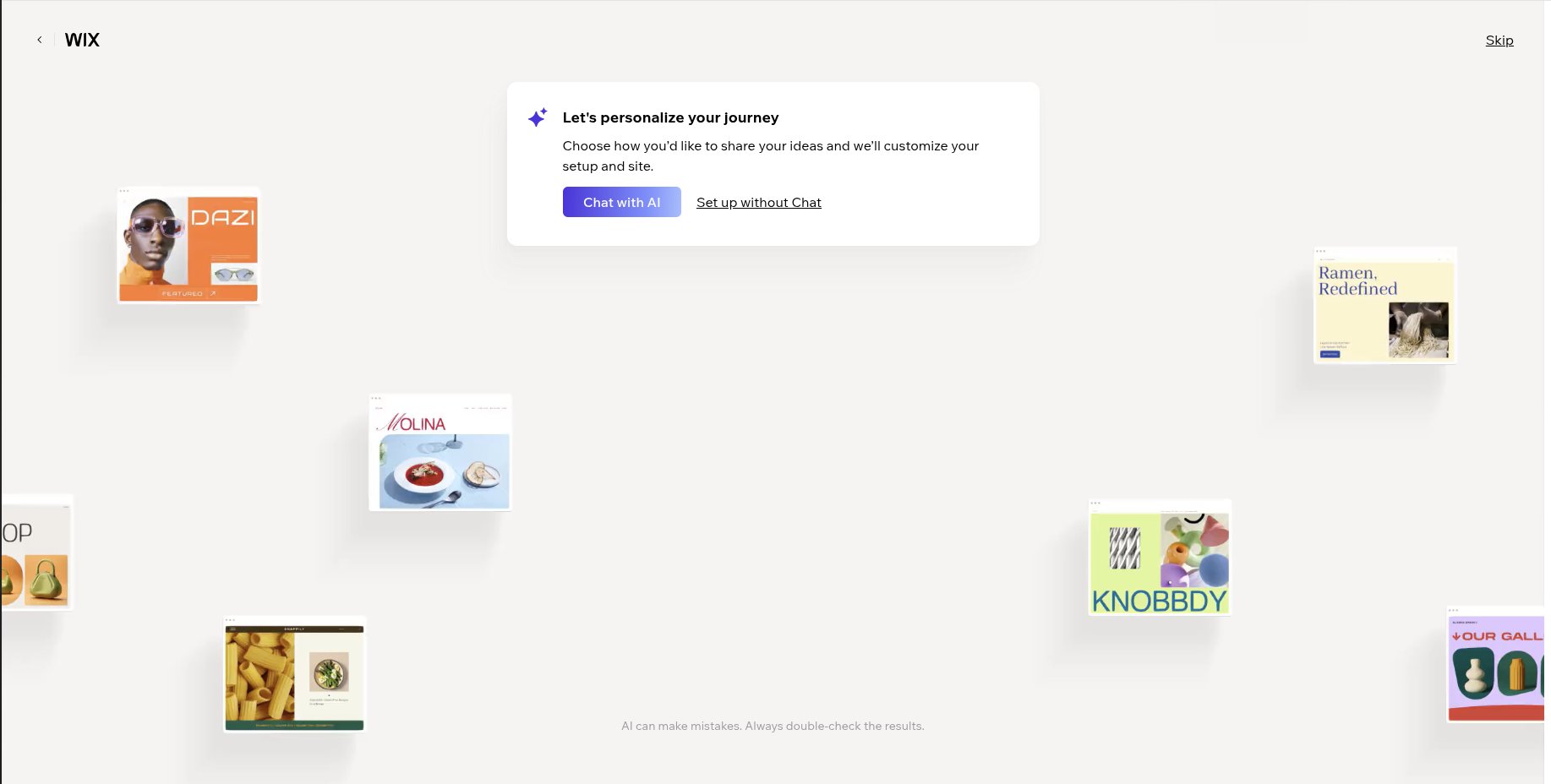
Wix will ask you a series of questions: what your business does, your business name, your location, your goals, and your target audience. Answer naturally — the more specific you are, the better the result. You’ll see your Site Profile building in real time on the left side as you answer.
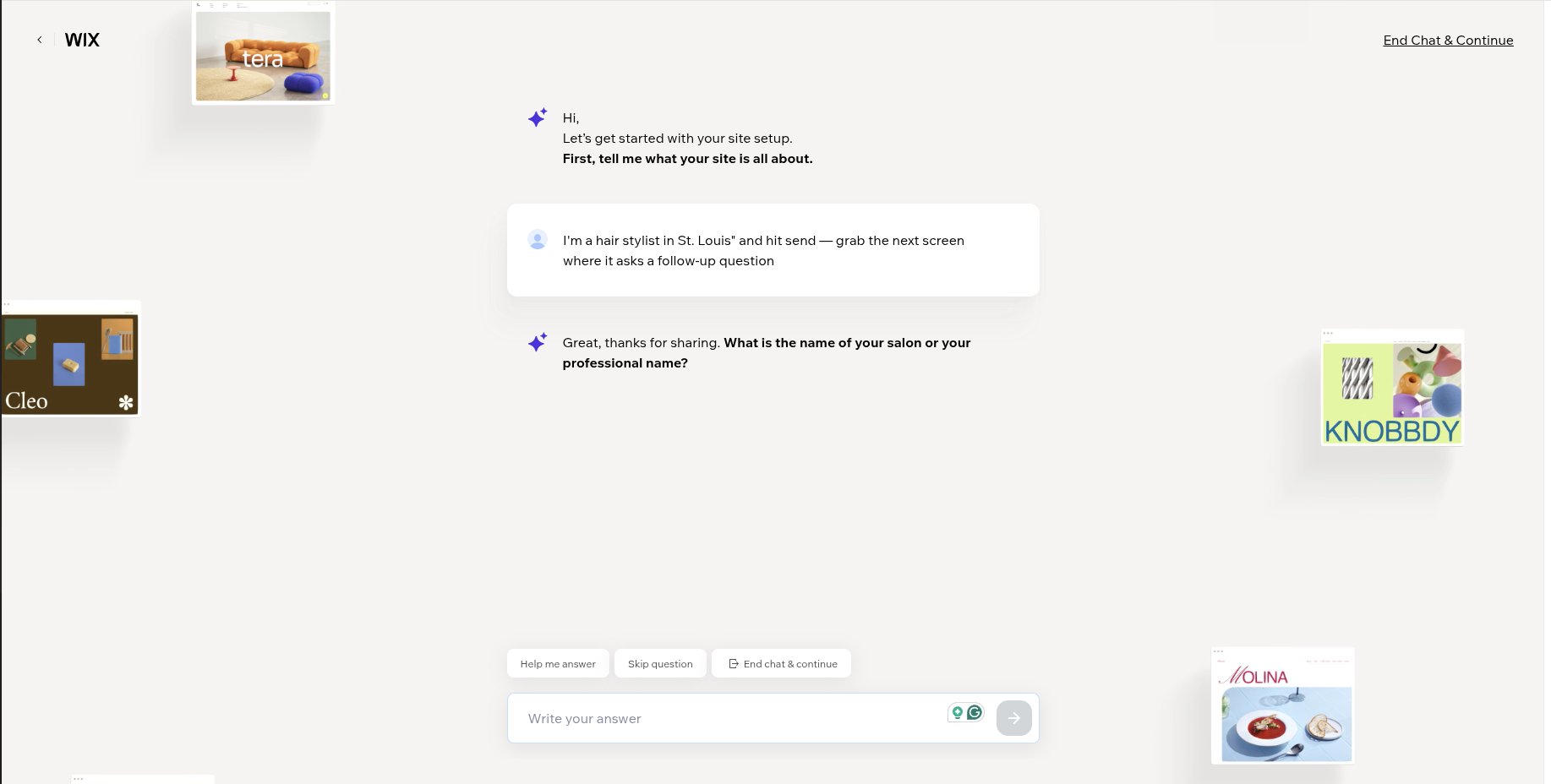
Once you’ve answered the questions, click End Chat and Continue in the top right. Wix takes everything you told it and moves to the design step.
Step 3: Let Aria Generate Your Website
After the chat, Wix brings you to the Design your site with Aria screen. Aria — Wix’s AI design engine — has already written a full prompt based on everything you just told it. You’ll see it auto-generating a description of your business in the text box.
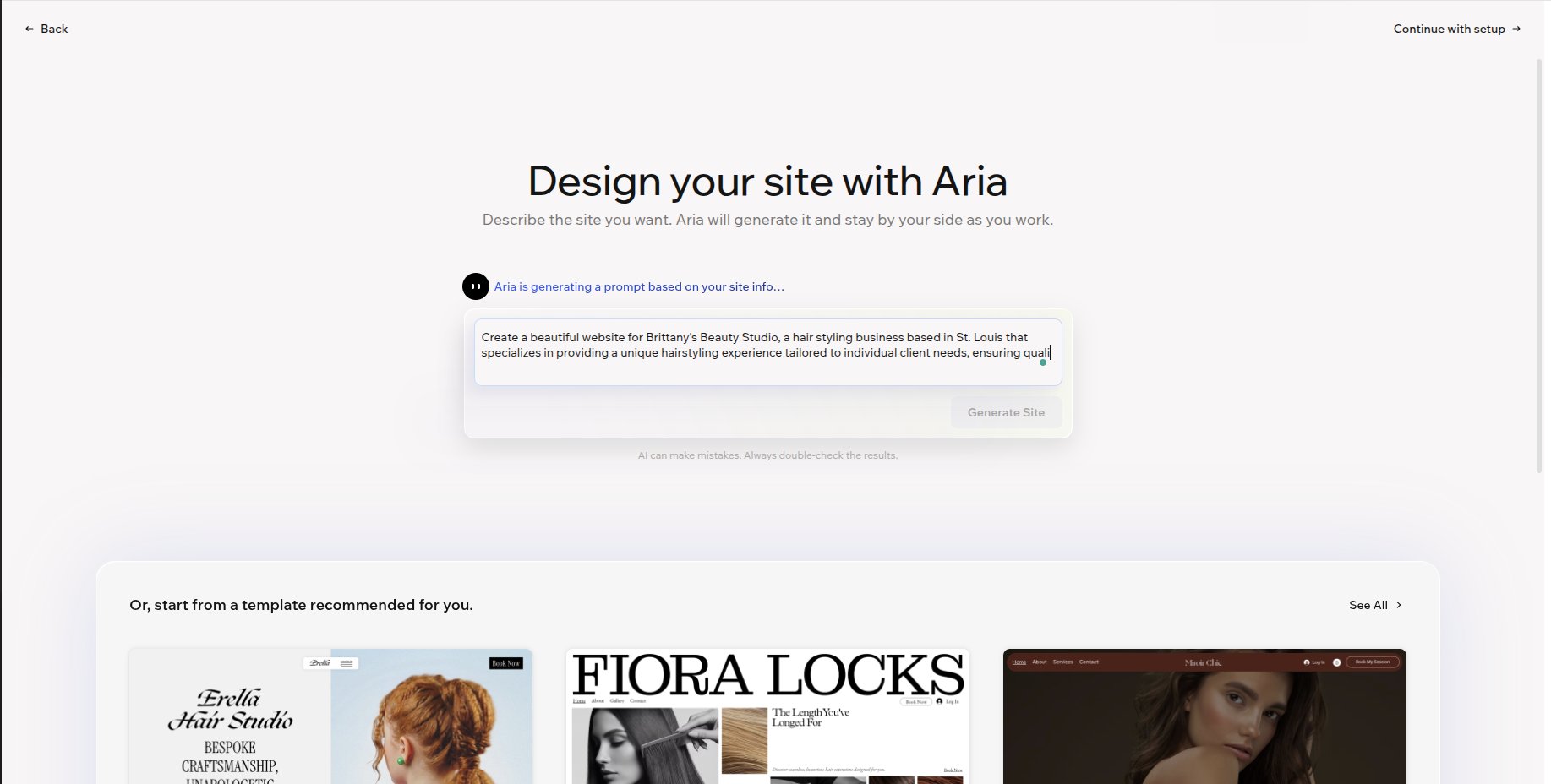
You can edit the prompt or just click Generate Site. Aria builds a complete, multi-page website for your business in about 60 seconds — your business name, location, relevant copy, and a matching visual style all included.
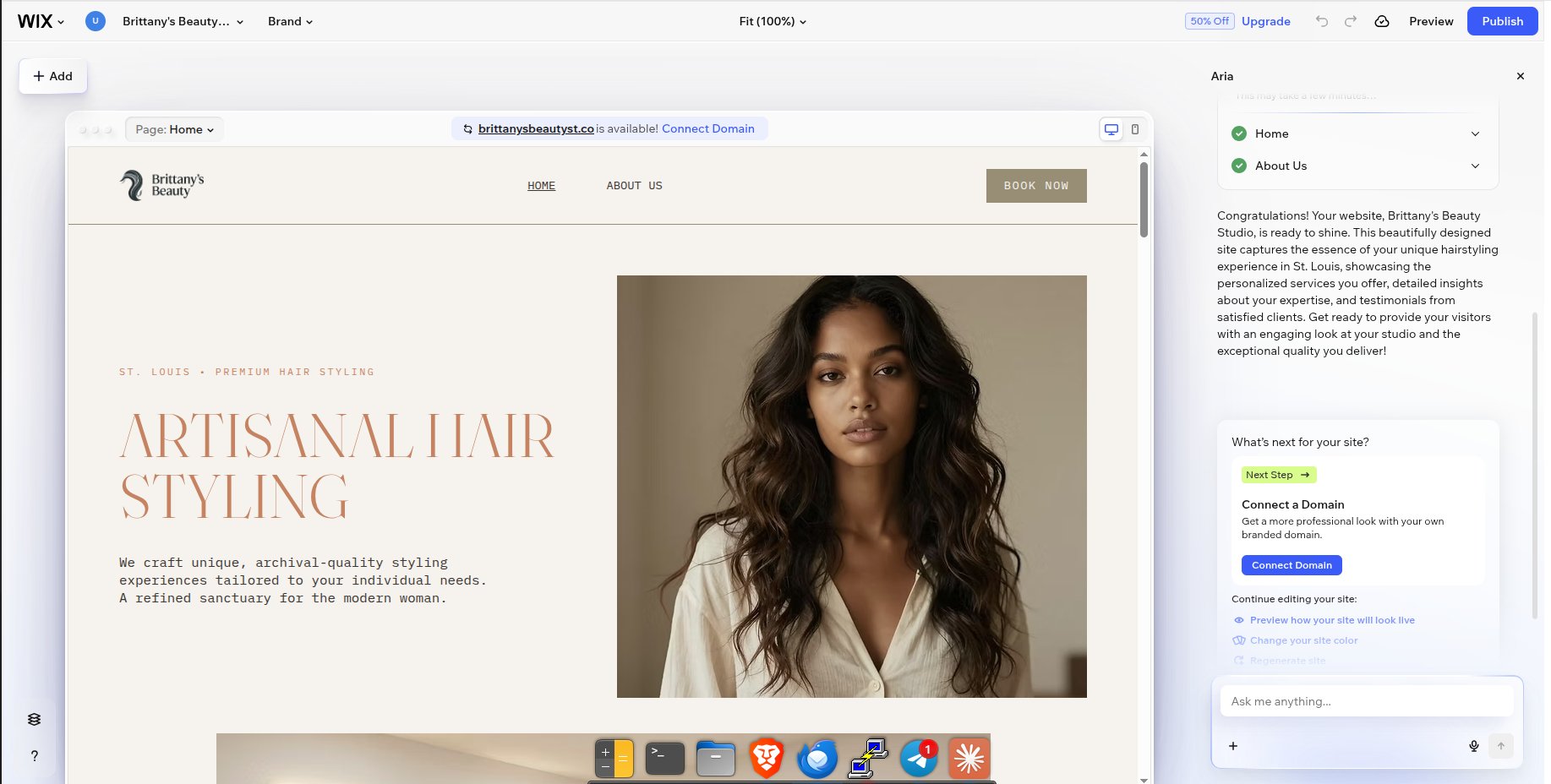
Think of this as your rough draft. The structure, layout, and visual style are already there. Now you refine it.
Step 4: Swap In Your AI-Generated Copy
Now go back to the copy you generated in Step 1. Double-click any text block in the Wix editor to edit it. Replace Aria’s generated text with your own AI-crafted versions — your headline, your tagline, your CTA.
For sections you want to customize further, go back to Claude or ChatGPT:
Write the copy for the Services section of my website. My business is [describe it]. Keep it focused on the customer’s problem and how I solve it. 3 services, 2 sentences each.
Work through each section: Hero, Services, About, FAQ, Contact. Paste and adjust to your voice.
Step 5: Dial In Your Colors and Fonts
Aria picks a color palette and fonts that match your industry — but you can make them more specific to your brand. Go back to AI and use this prompt:
My brand personality is [3 adjectives — e.g. warm, modern, trustworthy]. Suggest a website color palette with hex codes: one primary, one accent, one neutral background. Also suggest a Google Font pairing for headlines and body text.
In Wix, go to Brand → Brand Kit and update your colors and fonts. Ten minutes and your site goes from generic template to on-brand.
Step 6: Run a Final AI Review Before You Publish
Before hitting publish, copy your homepage text and drop it into Claude:
Review this website copy for clarity, tone, and professionalism. Flag anything awkward or unclear. Then give me: a page title under 60 characters, a meta description under 155 characters, and 5 SEO keywords.
Add those in Wix under Pages & Menu → SEO Settings. That’s your basic SEO foundation done.
The Bottom Line
The old way: hire a designer, wait weeks, spend thousands. The new way: have a conversation with Wix’s AI, let Aria build the structure, and use Claude or ChatGPT to sharpen the words. You can have a professional, on-brand website live today.
- Claude/ChatGPT → Brand voice, copy, colors, fonts, SEO
- Wix AI Chat → Captures your business profile
- Aria → Generates the full site structure and design
- Wix Editor → Your final customizations
Want me to walk you through this for your specific business? Reach out to Izende Studio — I offer AI-assisted website consultations where we get your site live in one session.
Ready to Build Your Site With AI?
Book a one-on-one AI website consultation with Izende Studio. We’ll work through your Wix site together — start to publish.