
A Beginner-Friendly Guide to View Transitions in CSS
Modern websites and web apps are expected to feel as smooth as native mobile apps. One of the biggest friction points is page navigation: every click that causes a full page reload can feel abrupt and jarring. CSS view transitions offer a more polished experience by animating the change between pages or views, often with only a small amount of code.
In this guide, you’ll learn what view transitions are, how they work, and how to start using them to add smooth, professional navigation effects to your multi-page sites and apps.
Key Takeaways
- View transitions allow you to animate changes between different pages or UI states, making navigation feel smoother and more app-like.
- Modern browsers support CSS View Transitions API, which can be enabled with minimal JavaScript and CSS.
- You can use view transitions for full page navigations and for in-page UI changes like modals, tabs, or layout shifts.
- Even a simple “cross-fade” transition can dramatically improve perceived smoothness without heavy animation work.
- Used carefully, view transitions can improve user experience without hurting accessibility or performance.
What Are View Transitions?
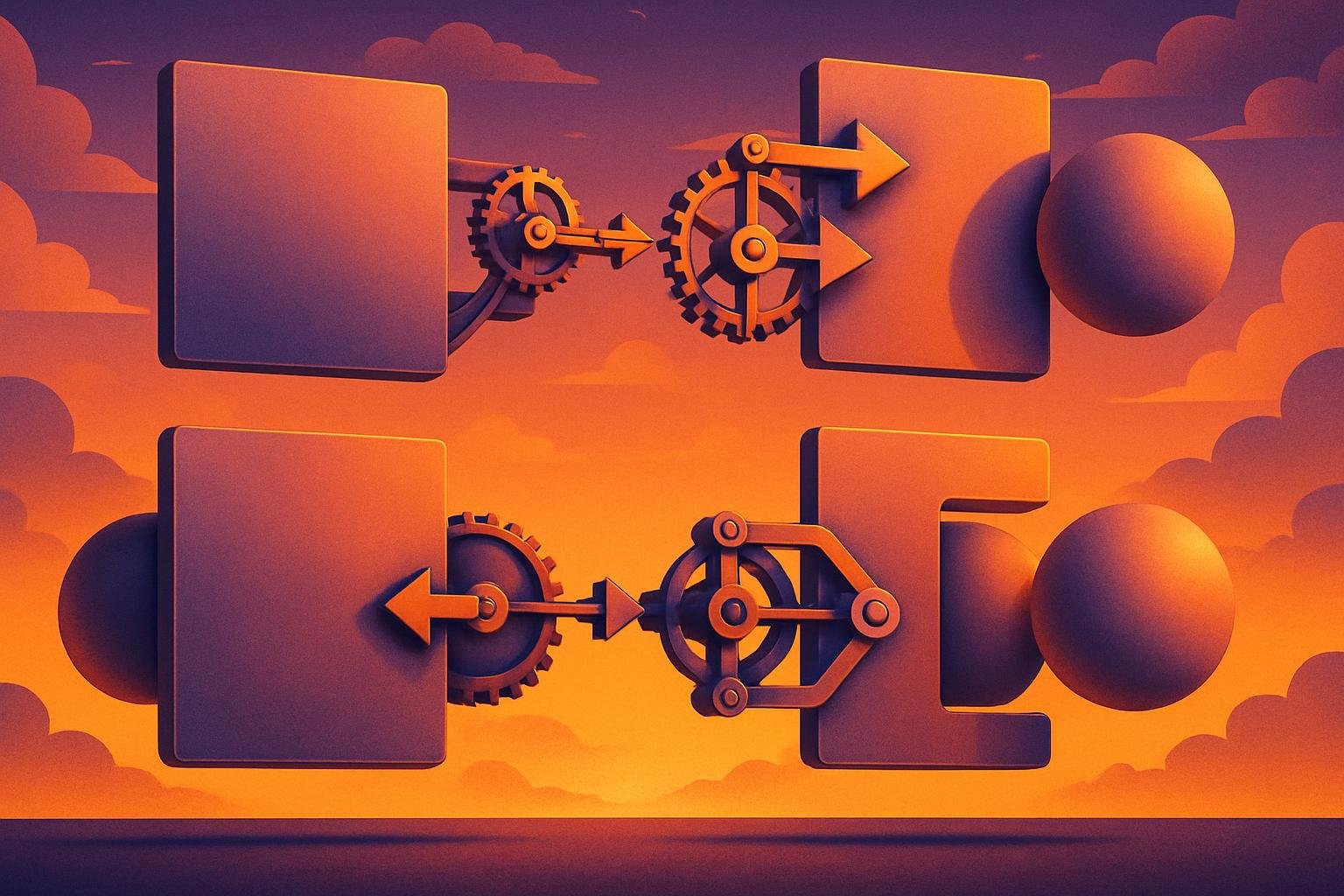
View transitions are a browser-powered way to animate from one visual state of your page to another. Instead of instantly swapping old content for new, the browser captures both states and animates between them.
There are two main use cases:
- Page-to-page transitions: When users navigate between different URLs (multi-page applications or traditional websites).
- View or state changes within a page: When UI components update (e.g., opening a sidebar, switching a tab, loading new content in place).
The core idea is that you declare what should participate in the transition, and the browser handles the heavy lifting of creating snapshots and animating between them. This gives you smoother navigation with less custom animation code.
Why View Transitions Matter for Small Businesses
If you run a small business website or web app, user experience is directly tied to conversions and customer trust. View transitions can help by:
- Making your site feel more professional: Smooth transitions are a subtle signal of quality and attention to detail.
- Reducing perceived loading time: Even when content takes a moment to load, a transition can make the change feel faster and more intentional.
- Improving engagement: A smoother experience can reduce bounce rates and keep users exploring your content or product.
- Aligning with app-like UX: If your users expect native-app polish, view transitions move your web experience closer to that standard.
Importantly, you can start small—just a simple fade between pages—without restructuring your entire site.
How the CSS View Transitions API Works
The View Transitions API is a browser feature that provides an easy way to animate DOM changes. The basic workflow is:
- The browser captures the current visual state (the “old” view).
- You apply some DOM changes (for example, navigate to a new page or swap content).
- The browser captures the new visual state (the “new” view).
- CSS animations define how to transition from the old state to the new one.
For multi-page navigation, you can leverage “document transitions,” where the browser coordinates transitions across page loads. For single-page applications (SPAs) or dynamic UI updates, you can wrap DOM changes inside document.startViewTransition() calls.
Enabling Basic View Transitions
Let’s walk through a minimal, beginner-friendly setup that adds a simple cross-fade between pages or views.
1. Check Browser Support
The View Transitions API is available in modern Chromium-based browsers (like recent versions of Chrome and Edge) and is expanding to others over time. For users on older browsers, your site will still work—just without the animated transitions.
An example feature check in JavaScript might look like:
(Note: Do not rely on this check alone for mission-critical UX; always ensure the core experience works without transitions.)
2. Simple CSS to Enable a Cross-Fade
Most of the magic happens in CSS. The browser exposes special pseudo-elements that represent the old and new views during a transition. A basic setup might include styling for these layers and a cross-fade animation.
You can:
- Define an animation that fades out the old view and fades in the new view
- Apply that animation to the transition pseudo-elements
This approach can be as lightweight as a single CSS rule to set default transition behavior, then optional refinements for specific elements if you want more control later.
Using View Transitions in Single-Page Apps
For SPAs or pages that update content dynamically with JavaScript (without a full reload), you can trigger a view transition when you change the DOM.
The typical pattern is:
- Call the View Transitions API to signal a change is starting.
- Update the DOM inside a callback or function the API uses.
- Let the browser animate between old and new states using your CSS rules.
This works well for:
- Switching between dashboard panels or reports
- Changing product details without leaving the page
- Animating the opening and closing of large UI sections
Using View Transitions for Multi-Page Sites
If your site uses traditional multi-page navigation (different URLs loaded from the server), you can still get smooth transitions. Depending on your framework or setup, you have two main options:
- Framework-level integration: Some frameworks and routers are beginning to support the View Transitions API directly.
- Progressive enhancement: Use a small client-side script to intercept link clicks, fetch the next page, and perform a transition before swapping content.
In both cases, your CSS view transition styles apply in the same way: the browser captures the outgoing page, captures the incoming page, and animates between them.
Best Practices and Accessibility Considerations
Well-implemented view transitions should enhance user experience without causing confusion, motion sickness, or performance problems.
1. Keep Transitions Subtle
For most small business sites, subtle is better:
- Use gentle fades, slides, or scale effects instead of complex choreographed animations.
- Keep durations short, typically around 200–300ms, so navigation still feels snappy.
2. Respect Reduced Motion Preferences
Some users prefer less motion for health or comfort reasons. You should:
- Check the user’s
prefers-reduced-motionsetting in CSS. - Disable or simplify view transitions when reduced motion is requested.
This ensures your enhancements do not create barriers or discomfort.
3. Ensure Clear Focus and Structure
Animations must not hide the logical structure of your page. To keep things accessible:
- Maintain correct headings, landmarks, and focus order regardless of the animation.
- Do not rely on animation alone to communicate important state changes.
Your site should still be fully usable with keyboard navigation and screen readers, with or without transitions.
4. Monitor Performance
Animations can add GPU and CPU cost. Test view transitions on a variety of devices:
- Ensure the page remains responsive during transitions.
- Avoid animating very large, complex elements when not necessary.
When to Use View Transitions (and When to Skip Them)
Consider adding view transitions when:
- Your site has frequent navigation between content-heavy pages.
- You want your web app to feel more like a native mobile app.
- You are redesigning your front-end and want a modern, polished visual layer.
It may be better to skip or limit view transitions when:
- Performance is already constrained (very low-end devices, heavy pages).
- The transition could obscure important changes (for example, critical error messages).
- Your users prioritize raw speed over visual effects, such as internal tools under strict time pressure.
The goal is not to animate everything; it is to remove jarring jumps where a smooth transition improves clarity and user comfort.
Practical Next Steps
If you are just getting started:
- Audit your site’s navigation: Identify the most frequent or visually disruptive page transitions.
- Start with a simple fade: Implement a basic cross-fade between views so you can validate the improvement quickly.
- Test with real users or teammates: Confirm that the transitions feel helpful, not distracting.
- Iterate selectively: Enhance specific areas (product pages, dashboards, content transitions) where animation adds clarity.
Over time, you can refine timing, easing, and element-specific transitions to match your brand and UX goals.
Conclusion
CSS view transitions give you a modern, browser-native way to create smooth animations between pages and UI states. With relatively little code, you can reduce the jarring feel of full page reloads and make your site or app feel more polished, without building a complex animation system from scratch.
For small businesses and independent developers, this is a practical way to improve user experience and perceived performance while keeping your codebase maintainable.
If you want support integrating view transitions into a broader front-end strategy—covering performance, accessibility, and design consistency—consider working with a development partner who focuses on small business needs.
Explore Izende Studio Web’s development and UX services to see how we can help you modernize your site’s front-end experience.
Share this article:

Need Help With Your Website?
Explore website design, managed hosting, SEO, and practical digital support for your business.
Request a Quote